
How to Make a Tiptoeing in My Jordans AI Video
Updated October 16, 2026
Quick answer
Upload one photo to Tiptoe Dance AI, keep Full Recast selected, and download the silent 12-second 16:9 MP4. Add platform sound separately when you have permission to use it.
What You Need
- One photo — JPG, PNG, or WebP up to 10 MB. A visible waist-up or full-body subject works best; pets and original characters can work too.
- A Tiptoe Dance AI session — sign-in is required when you generate.
- 112 credits per video. Credits convert at $1 = 100 credits; one-time packs start at $5 and do not expire.
Step 1 — Pick the Photo
Keep the subject facing the camera or turned only slightly. Even light, a readable silhouette, and a simple background give the composite more to work with.
Pets, avatars, and original characters can work in Full Recast. Avoid group shots, tiny subjects, motion blur, sunglasses, and heavy filters.
Step 2 — Choose Full Recast
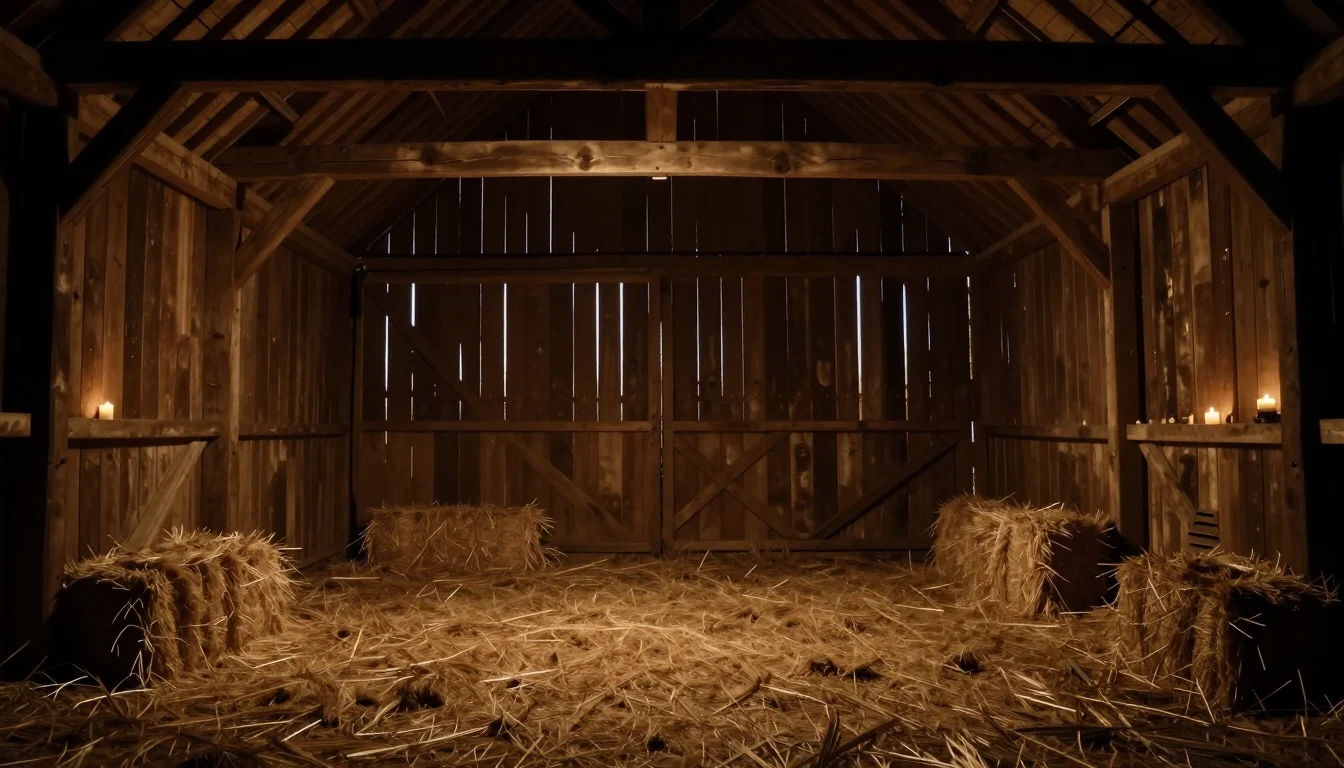
The tool returns a fixed 12-second, 16:9, silent MP4. Your photo becomes the visible dancer inside a newly generated barn scene.
| Mode | What it does | Best photo | Credits |
|---|---|---|---|
| Full Recast | Places your subject into a generated barn scene and animates the fixed motion | Waist-up or full body; pets and characters can work | 112 |
Step 3 — Generate in the Studio
Open the studio, add your photo, check the consent note, and start the run. The composite and animation steps can take a few minutes.
When the video is ready, download the MP4. Videos are created private and are not added to a public gallery.
Step 4 — Download and Add the Sound
The file contains no song. If you post on TikTok or Reels, use the platform’s Add sound control and choose the intended sound only when you have the right to use it.
The clip is 16:9. Post it as-is or crop it in the platform editor for a portrait feed.
Step 5 — Post Responsibly
- Mark the video as AI-generated when the platform provides that option.
- Only use photos of yourself or people who agreed to the upload and the intended post.
- Do not post real people without permission, and never use photos of minors for this tool.
Photo Do’s and Don’ts
Do
- Use a sharp, front-facing or gently angled photo with even light.
- Fill a useful part of the frame with the subject.
- Keep the subject unobstructed and easy to read.
Don’t
- Use group shots, sunglasses, masks, or heavy beauty filters.
- Start with a tiny subject or strong side profile.
- Use motion blur, harsh shadows, or extreme angles.
Troubleshooting
The subject looks off in a few frames
Try a sharper, larger, more front-facing source photo with even light.
I want to use a pet or character
Keep Full Recast selected. It accepts visible pets, avatars, and original characters; results vary.
The generation is taking a while
Full Recast runs a composite step and a motion step, so a few minutes is normal. You can leave the page.
The result came out blurry
Start from a higher-resolution photo with the subject well lit and unobstructed, then run it again.
Keep Reading
Tiptoeing in My Jordans AI Video FAQ
Upload one photo to Tiptoe Dance AI, keep Full Recast selected, wait a few minutes, and download the silent 12-second 16:9 MP4.